

This is part 3 of a series of posts tracking my efforts at taking a tiered application (WordPress) and stuffing it into containers for repeatable, automate-able deployment.
- Part 1 – How do I ‘containerize’ something?
- Part 2 – Setting up WordPress
- Part 3 – Getting ready for containers
The past couple days, I have been through a lot of trial and error, and have been reminded of some basics that I have frankly forgotten. Also, according to all the documentation, there are a couple basic ways to move or migrate a WordPress site to between servers:
- WordPress plugin – this is the most commonly referred to solution. Using a WordPress plugin seems to be the ‘easiest’ solution, as it simply allows one to export everything about your site from one host and import it to another. Of course, that’s a manual process, and I am looking for something that might ultimately be automated as part of a software delivery lifecycle.
- Backup / restore – there are a variety of techniques in the ecosystem that basically discuss backing up your site and restoring it as a part of your migration. this really entails two things – backing up and restoring the database, and the WordPress site web files and content. After quite a bit of trial and error, I actually found this to be remarkably easy, once I got a little help and direction from my coworkers.
So, a couple things I had to take care of before I was able to move forward…
DNS resolution
Although I have a WordPress site running on my laptop – accessble at http://localhost – after moving it to a container and trying to deploy it elsewhere, I was reminded that WordPress stores its own URL in the database. So what, you ask? Wel of course that means that even if you manage to move it, if the site has been set up with ‘localhost’ as the site address, then upon deployment to anywhere it will always try to redirect you to ‘localhost’ … ‘cuz it’s in the database. Duh. So the first thing I had to do was configure WordPress with its own, unique URL that I could manipulate. I chose “blog.occasional-it.com” and configured this with my local hosts file (/etc/hosts) so I can access it no matter where it is.

Database Backup
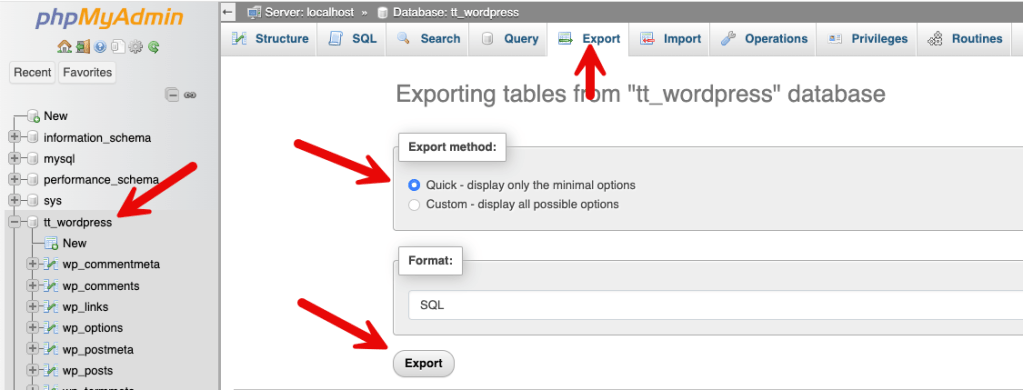
Backing up your WordPress database is straightforward. I used PHPMyAdmin to export / dump my WordPress database in about 15 seconds. If you haven’t done this before, WordPress has thorough instructions here: https://developer.wordpress.org/advanced-administration/security/backup/database/
WordPress Files and Data
Believe it or not, if you have a functioning WordPress installation, you should in many cases be able to simply replace the contents of the main WordPress directory with the contents from the site you are trying to migrate. Since these files are simply resident on my MacOS file system, it was a simple matter to just make a copy of them.
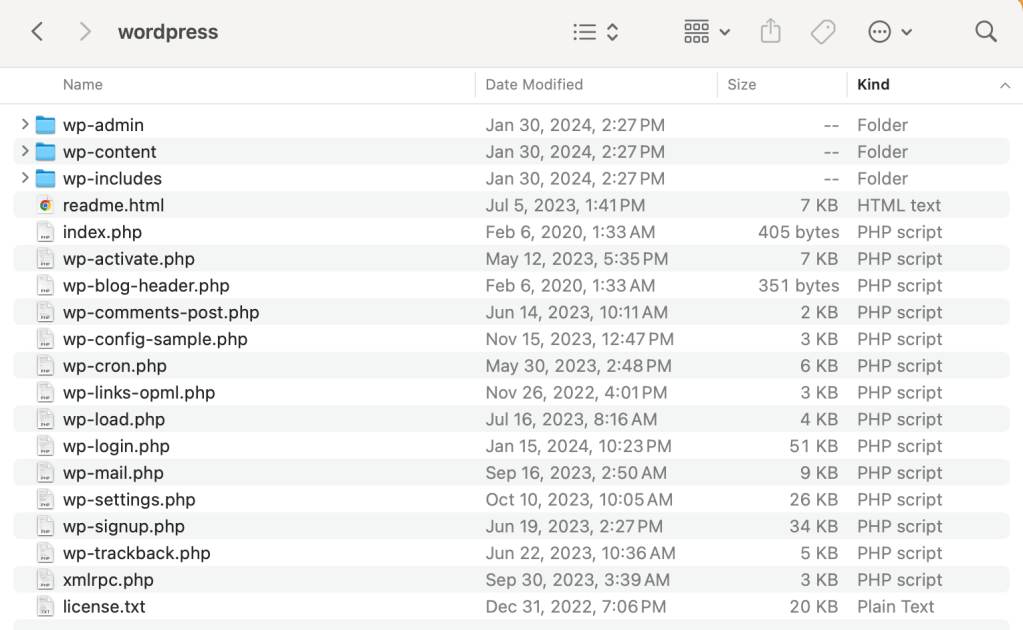
- “wp-admin” – you guessed it, this is the admin site
- “wp-content” – this is the directory that includes all your themes, plugins, and media files.
- “wp-includes” – this directory contains all the templates for your posts and pages, CSS definitions, fonts, etc.
- / or root directory – of course, the base folder contains your index file, login page, settings page, some setup files.
Now that I have those three things set up:
- DNS resolution
- database dump file (.sql)
- copy of my WordPress site and files
I am ready to create my containers.
 My Occasional IT Blog...
4 comments